
godotnvim
A Godot 4 editor plugin that edits GDScript, shaders and other text files in
an embedded Neovim, drawn inside the editor with Neovim’s UI protocol
(ext_linegrid). It keeps the parts of Godot’s script editor that matter:
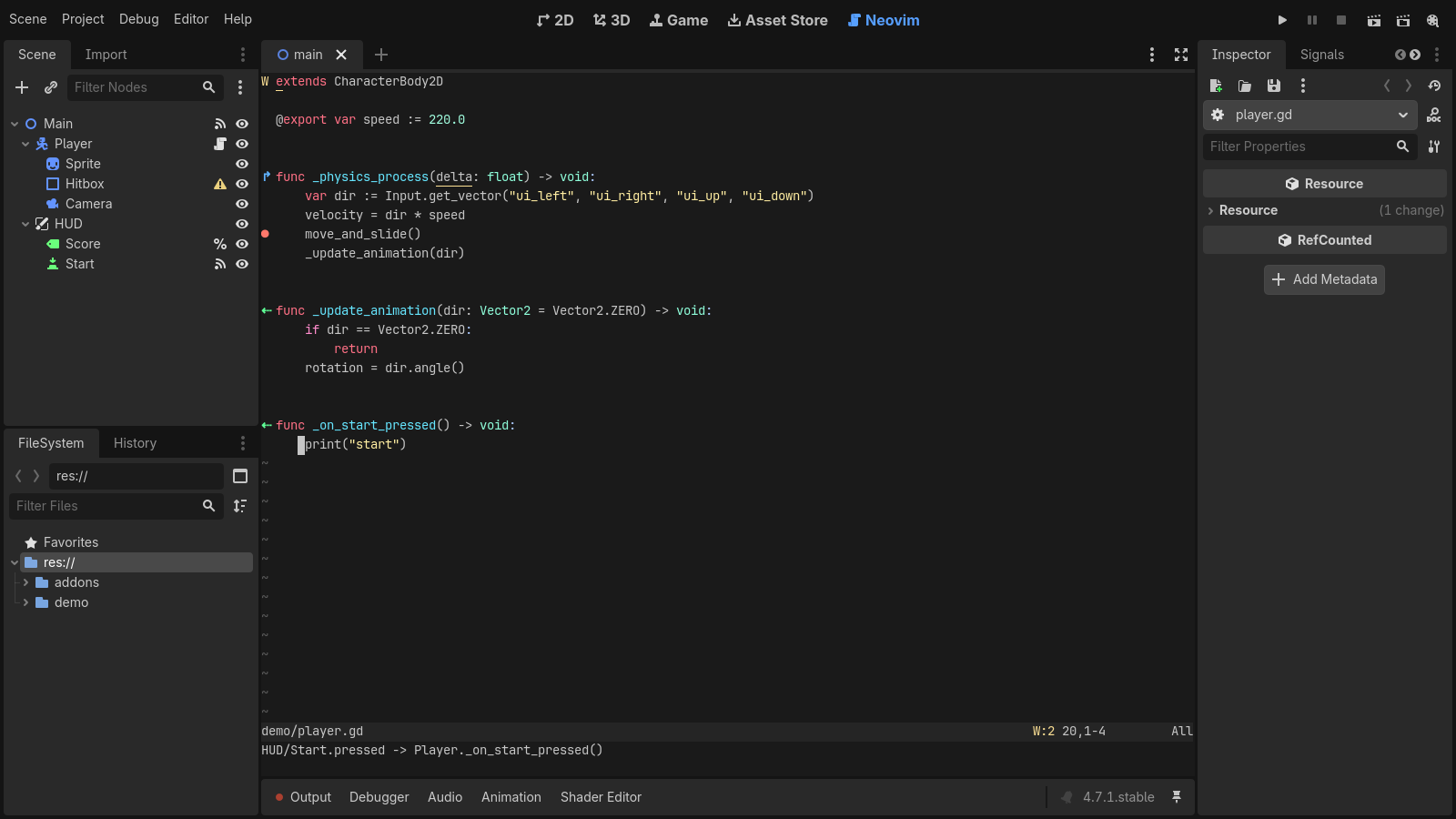
- dragging nodes or files from the editor’s docks inserts the same text Godot does, and dragging an Inspector property inserts its node path;
- the GDScript language server gives hover docs, definitions and completion;
- debugger breakpoints show in the gutter, in sync with Godot’s debugger;
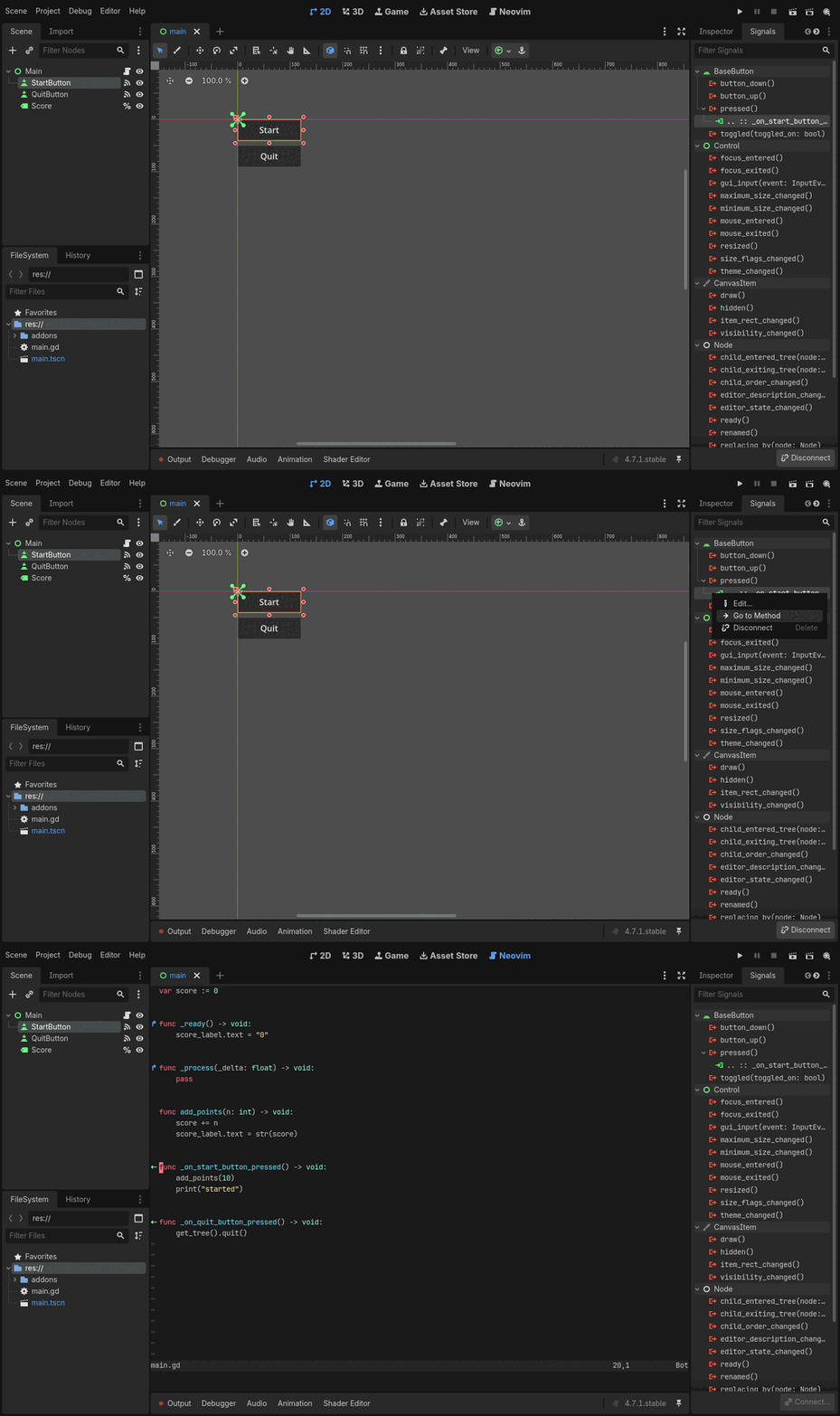
- signs mark methods that signals connect to and methods that override a base class, and the Signals dock’s Go to Method opens the method in Neovim;
- Neovim takes its colors from the script editor’s theme;
- Godot’s run, pause and stop shortcuts keep working while you type.
Your Neovim config, plugins and keymaps load as usual.
Website: gdey.github.io/godotnvim
Requirements #
- Godot 4.5 or newer. The tests pass on 4.5.1, 4.6.1 and 4.7.1. On 4.4
the editor can be killed by
SIGPIPEwhen Neovim stops, and 4.3 lacks APIs the plugin uses. - Neovim 0.10 or newer, installed separately. 0.11+ is recommended for its default LSP mappings.
- Platforms: Linux is tested. macOS is in daily use. Windows should work but is untested; reports welcome.
Install #
From the Asset Library: search for “Neovim Script Editor”, install, then enable it as below.
Copy addons/godot_nvim into your project’s addons/ folder, then enable
Neovim Script Editor under Project → Project Settings → Plugins. A
Neovim tab appears next to 2D / 3D / Script.
The plugin looks for nvim in /opt/homebrew/bin, /usr/local/bin and
/usr/bin (apps started from the macOS Dock don’t see your shell’s PATH).
To use a different binary, set it in Editor Settings → godot_nvim/nvim_path.
You can pass extra arguments, such as -u NONE, in godot_nvim/nvim_args.
Neovim starts in the project folder and loads your usual config.
The plugin only runs in the editor, so it leaves itself out of exported games:
nothing under addons/godot_nvim/ is exported, and you don’t need an export
filter for it.
Use #
Open any text file from the FileSystem dock: scripts, shaders (
.gdshader,.gdshaderinc),.json, and plain text (.cfg,.txt,.md, …). It opens in the Neovim tab. Scenes and.tresresources still open in their usual editors.Drag a node from the Scene dock onto the view to insert
$Path/To/Node(or%Namefor unique names). Hold Ctrl (Cmd on macOS) while dropping to insert@onready var node_name: Type = $Path/To/Nodeabove the line under the mouse. Type hints follow Editor Settings →text_editor/completion/add_type_hints.Drag files from the FileSystem dock to insert
"res://path", or with Ctrl/Cmd held,const Name = preload("res://path").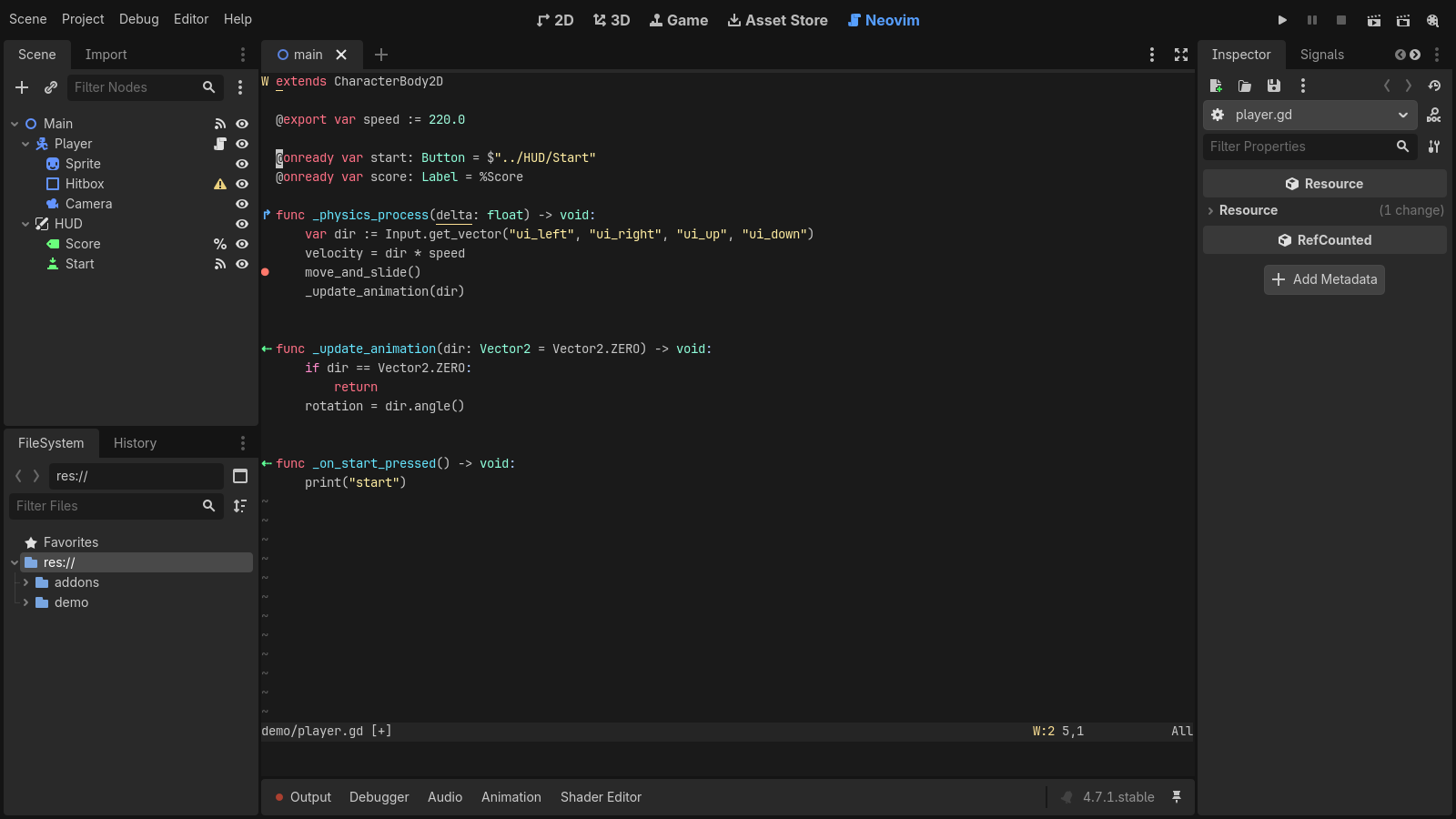
Drag a property from the Inspector to insert it with its node path:
$Path/To/Node.property(justpropertyfor the script’s own node, and.get("group/property")for properties with a slash). Hold Ctrl (Cmd on macOS) to insert the NodePath string"Path/To/Node:property"instead, as animation tracks take. Properties of a resource rather than a node insert the quoted name, as Godot does.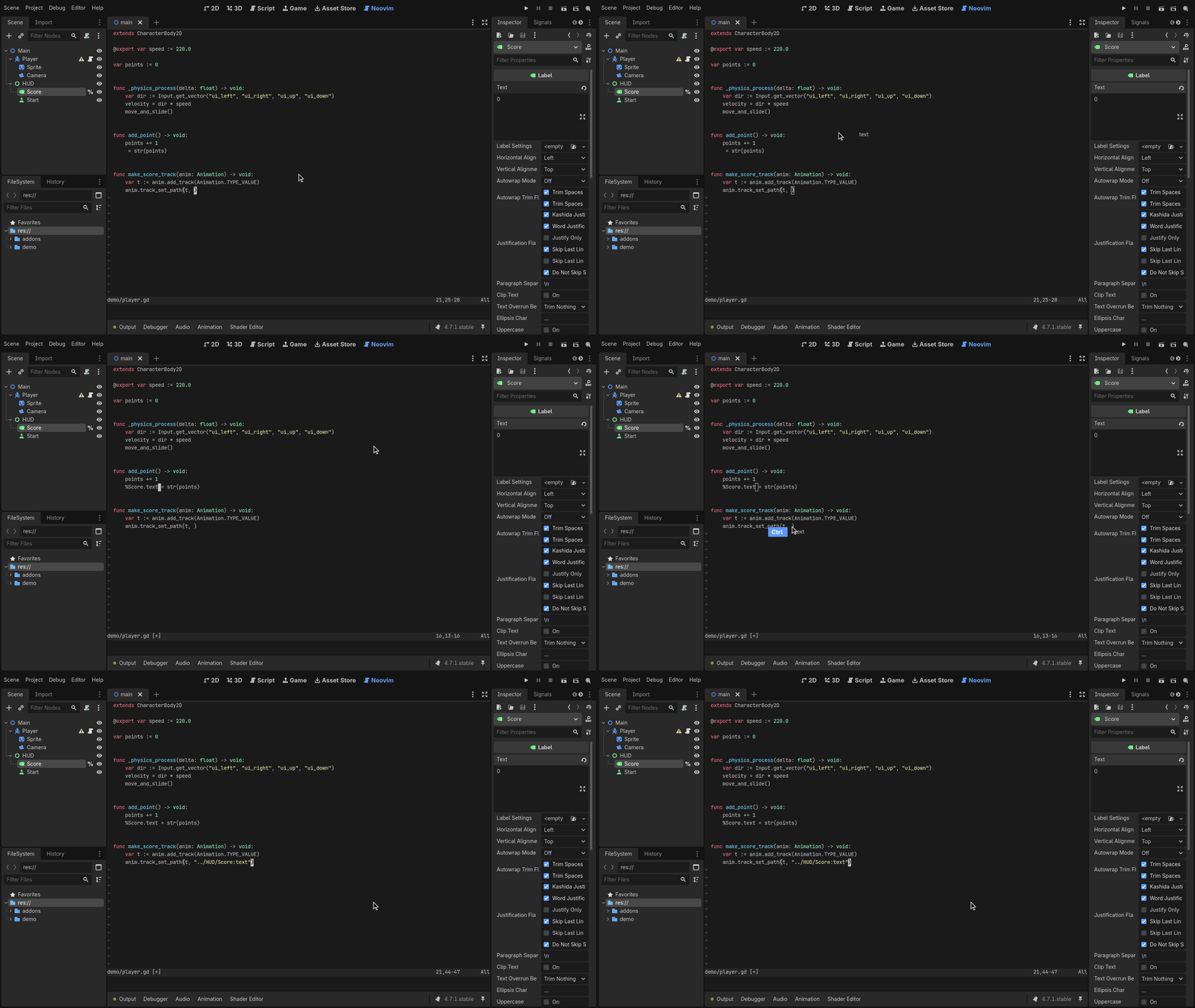
:wsaves, and Godot reloads the script, shader or JSON.Like Godot’s own script editor, unsaved Neovim buffers are written when you save a scene or run the project, and Godot asks about them when it closes.
Neovim runs for as long as the editor does. On the last window,
:qacts like:bdand:wq/:xlike:w+:bd: the file closes, the previous file (or an empty placeholder) shows, and Neovim keeps running. If Neovim exits anyway (:qa, a crash), it restarts on the last file.
Reopening files #
When the editor closes, Neovim saves which files are open, where the cursor is in each, and the splits and tabs. The next time you open the project they come back as you left them. A file you open from Godot at startup, such as by double-clicking a script, lands on top of the restored layout.
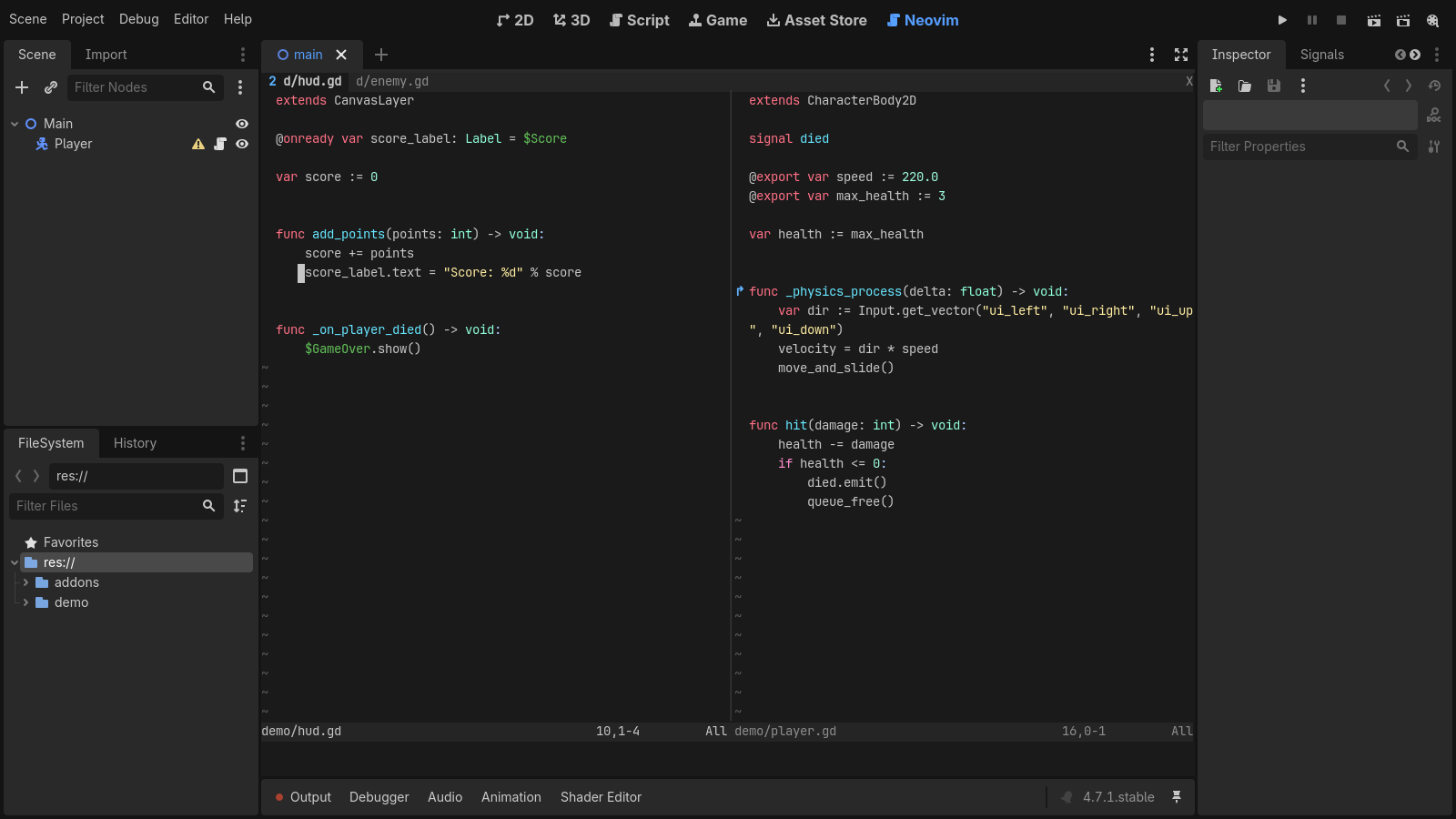
The session is per project, in .godot/godot_nvim/session.vim (Godot keeps
.godot/ out of version control). It’s written with :mksession, without
options, mappings or the working directory, which stay with your config.
Windows on scratch buffers, such as file trees, aren’t saved, and files
deleted in the meantime don’t come back. Leaving Neovim with :qa saves the
session too, so the restart that follows restores it.
To turn this off, for example because a session plugin of your own does the
same, clear Editor Settings → godot_nvim/restore_session (Advanced Settings
must be on to see it).
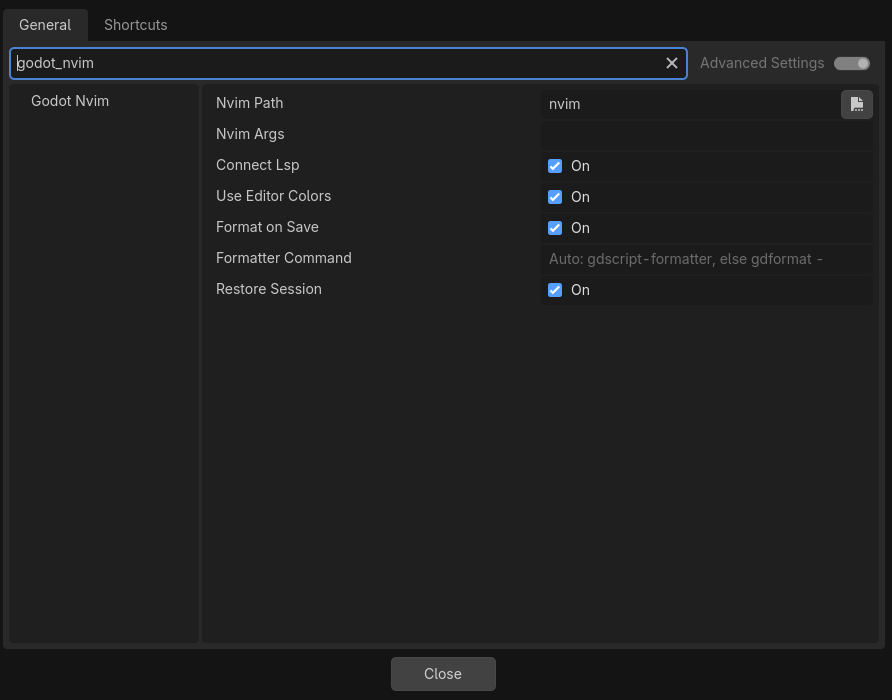
Starting clean #
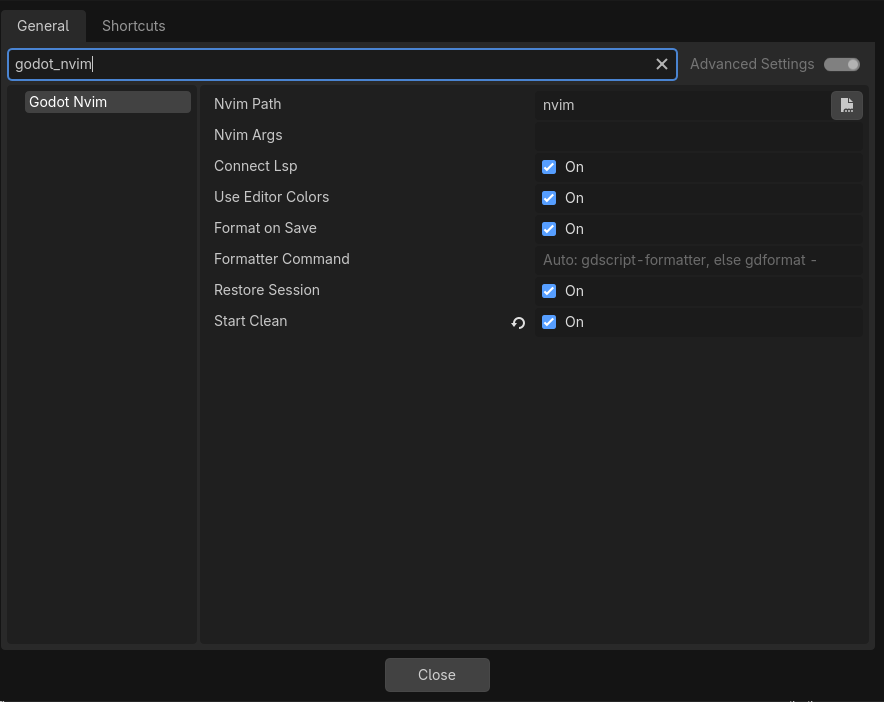
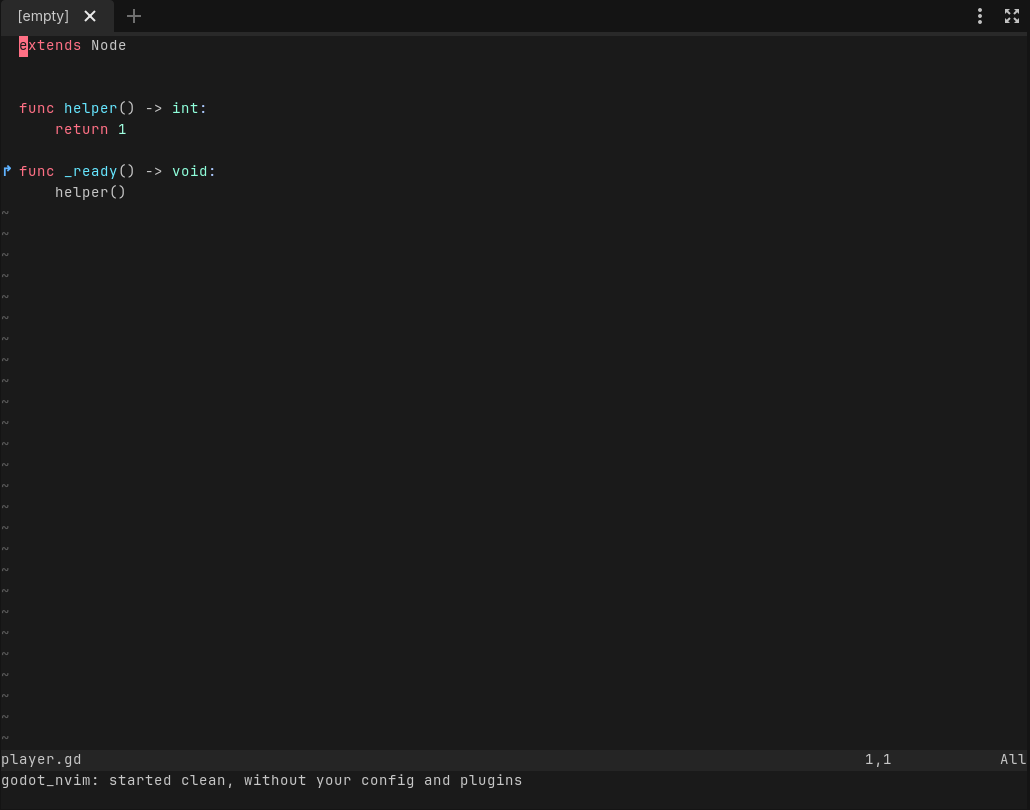
To check whether something odd comes from your Neovim config or a plugin of
yours, turn on Editor Settings → godot_nvim/start_clean (Advanced Settings
must be on to see it). Neovim restarts with --clean: no init.lua, no
plugins and no ShaDa (marks, registers and history aren’t read or written),
and says “started clean” at the bottom. If there are unsaved changes it
waits until you :qa, so nothing is lost.
Everything this plugin does itself keeps working, because its Lua is sent
to Neovim over RPC rather than loaded from your config: drag and drop,
breakpoints, the GDScript language server, the godot colorscheme, format
on save and the session. The session is shared with normal starts, so the
files you had open come back either way, and turning the setting off again
returns to where you were. Arguments in godot_nvim/nvim_args are still
passed after --clean.
Telling your config it runs inside Godot #
The plugin sets vim.g.godot_nvim = true before your config loads, so your
config can tell the Neovim inside Godot from your other ones. For example, to
keep lazy.nvim’s update checker running but stop it listing plugin updates
each time Godot starts:
require("lazy").setup({
  -- ...
  checker = { enabled = true, notify = not vim.g.godot_nvim },
})
Scene tabs #
Each scene open in Godot’s scene tabs gets its own Neovim tab page. Switching
scenes in Godot shows that scene’s tab page, and switching tab pages in
Neovim (gt, :tabnext, a click on the tabline) switches Godot’s scene. A
script opened from the Scene dock or the Inspector opens in the current
scene’s tab page, even when another scene’s tab already shows it, since
jumping there would switch scenes.
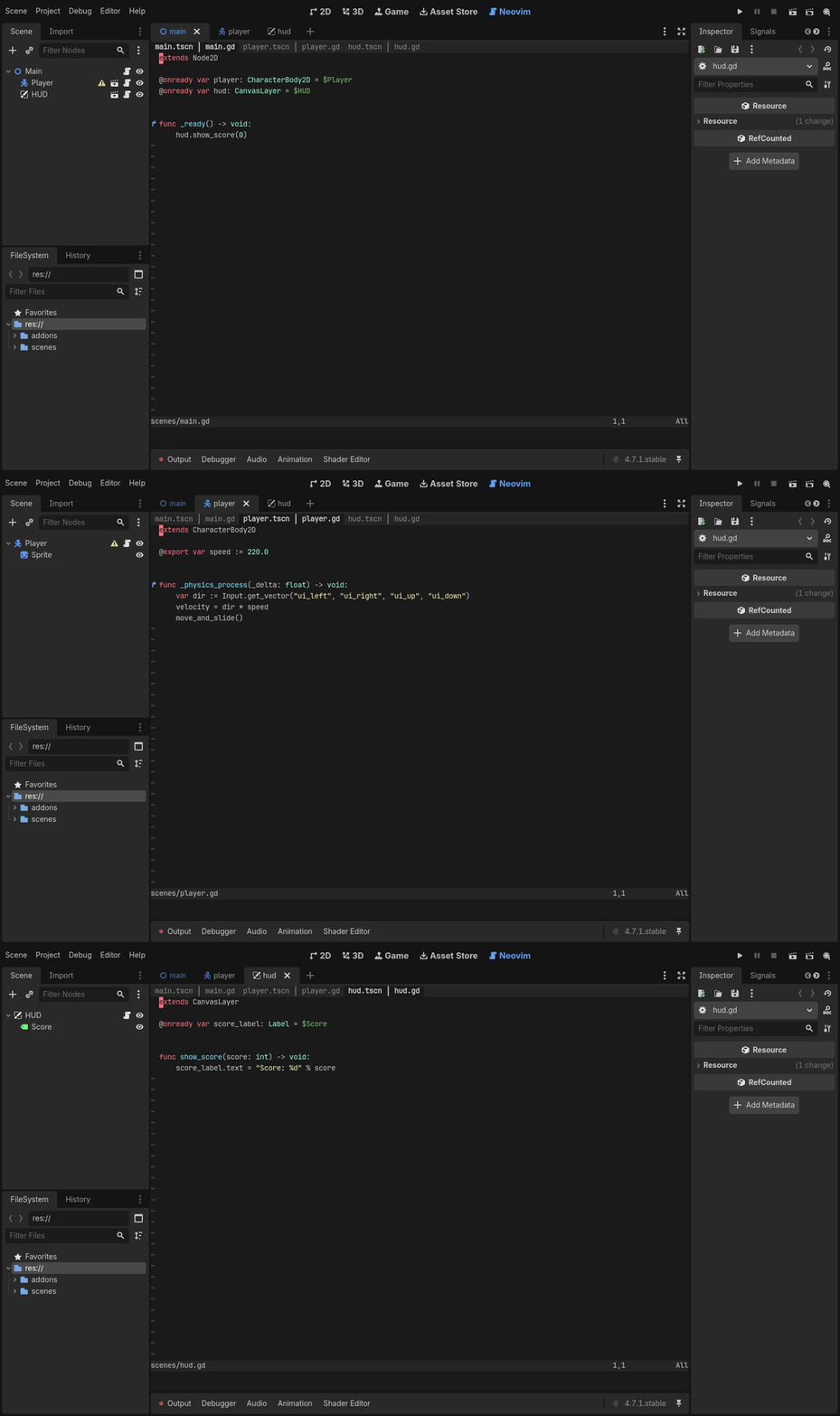
- Opening a scene makes its tab page, in the same order as Godot’s tabs. The first scene takes the tab page Neovim already has.
- Closing a scene closes its tab page. Its buffers stay open, and ones with
unsaved changes are kept hidden;
:lslists them. :bdor:bwin a scene’s tab page shows the next buffer there, as with a single tab page, rather than closing the tab page.- A scene saved under a new name (Save Scene As, or a new scene’s first save) keeps its tab page.
- Tab pages you make yourself aren’t tied to a scene and are left alone. Closing a scene’s tab page in Neovim doesn’t close the scene; switching to the scene again makes a new one.
- Which tab page belongs to which scene is saved with the session, in
.godot/godot_nvim/session.scenes.json. - If your config doesn’t set
'tabline', tab labels show the scene and the file, such asplayer.tscn │ player.gd. A custom tabline can read the scene’s path fromt:godot_scene.
To turn this off, clear Editor Settings → godot_nvim/link_scene_tabs.
Hiding the Script screen #
Godot still opens its own script editor alongside Neovim, so the Script tab is best hidden with an editor feature profile. The plugin keeps working with it hidden: files open in Neovim, and breakpoints still sync.

Project → Tools → Create Neovim Editor Profiles does this for you:
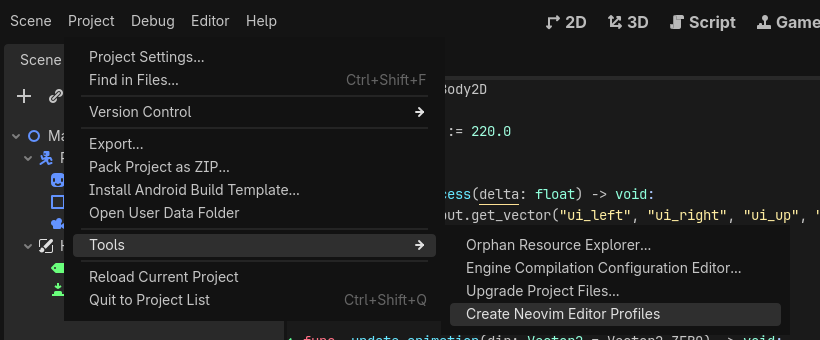
For every profile you have (Editor → Manage Editor Features), it saves a copy
named <name>-neovim with the Script screen turned off. If you have no
profiles, it makes Default-neovim. Profiles that already end in -neovim
are skipped, and existing -neovim copies aren’t overwritten, so delete one
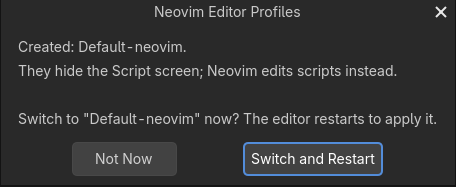
to regenerate it. It then offers to switch to the -neovim copy of your
current profile, which restarts the editor:
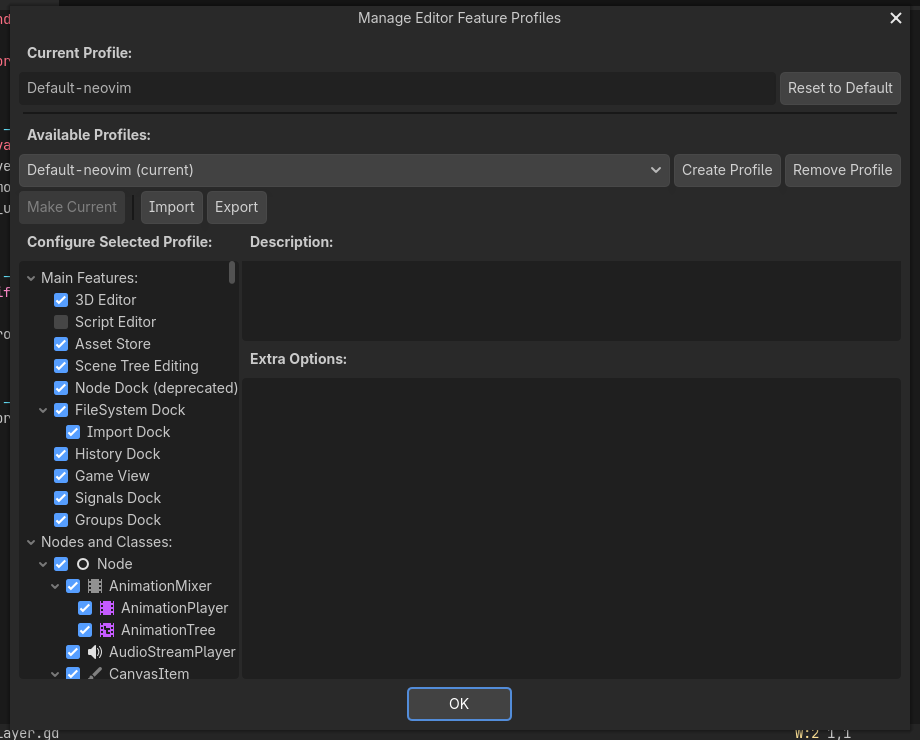
To switch profiles later, or to do it by hand, open Editor → Manage Editor Features. Pick a profile and press Make Current (or Reset to Default for no profile). The Script Editor box under Main Features is what shows or hides the Script tab.
Running the project #
Godot’s run shortcuts work while typing in Neovim: Run Project, Run Current Scene, Run Specific Scene, Pause and Stop (F5, F6, Ctrl+Shift+F5, F7, F8; on macOS Cmd+B, Cmd+R, Cmd+Shift+R, Ctrl+Cmd+Y, Cmd+.). They follow your bindings in Editor Settings → Shortcuts. The same actions are commands:
| Command | Does |
|---|---|
:GodotRun | Run the project’s main scene |
:GodotRunCurrent | Run the scene open in the editor |
:GodotRunScene [file] | Run a .tscn/.scn (completes file names); without a file, pick one as Godot does |
:GodotPause | Pause or resume the running project |
:GodotStop | Stop the running project |
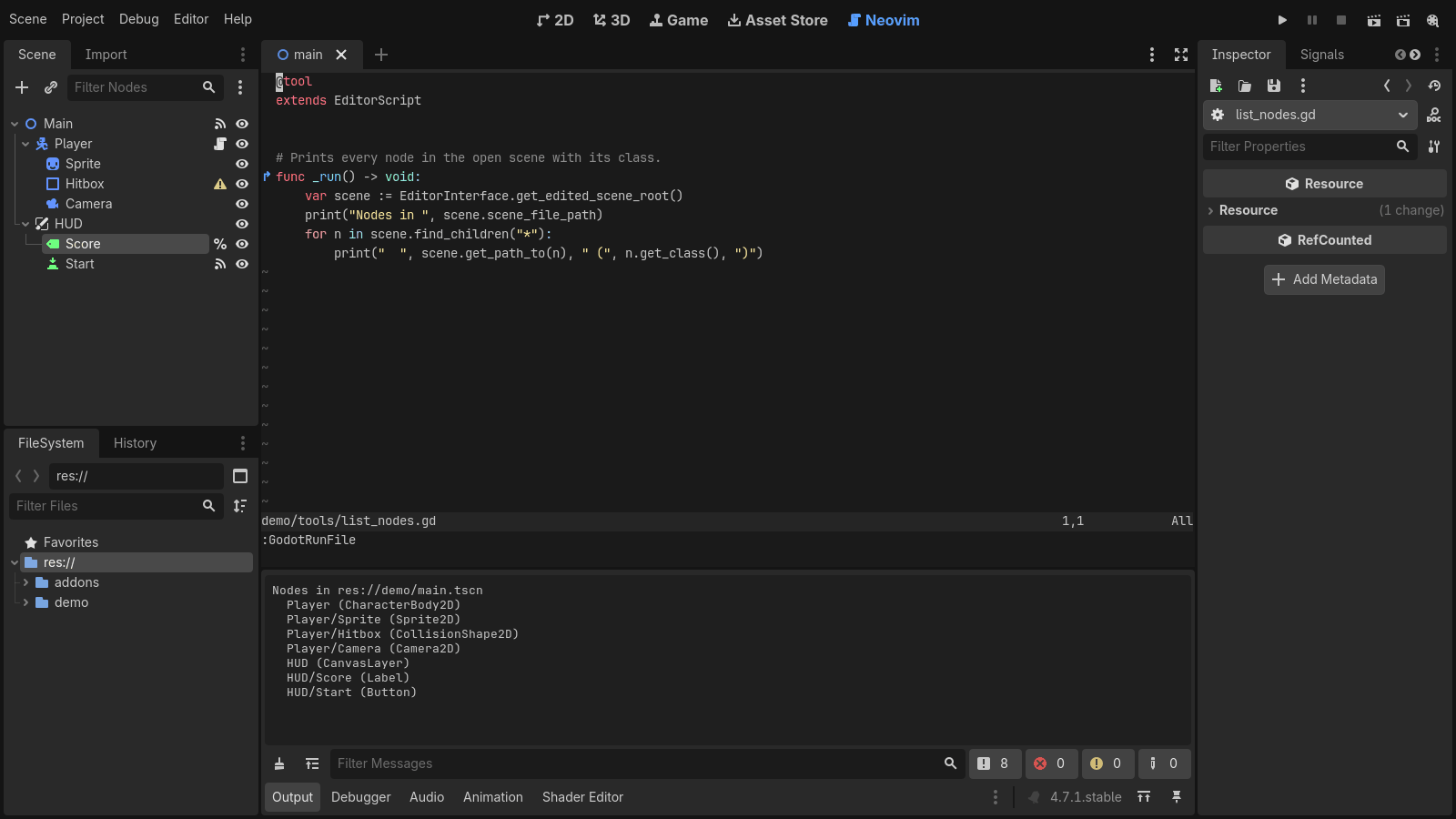
:GodotRunFile [file] | Run an EditorScript, as the script editor’s File → Run does; without a file, the current buffer |
:GodotRunFile runs scripts that start with @tool and extend
EditorScript, calling their _run() in the editor, for one-off editor
tasks:
@tool
extends EditorScript

func _run() -> void:
	print(EditorInterface.get_edited_scene_root())
Godot runs the file as saved, so the command writes its buffer first when it
has unsaved changes. Files outside the project run too, as they do from
Godot’s script editor, after Neovim asks you to confirm. A script that has errors, is not a tool script, or does
not extend EditorScript is not run, and the reason shows in Neovim and in
Godot’s Output panel. print() output goes to the Output panel.
Debugger #
- Breakpoints show as
●signs in Neovim’s sign column (highlight groupGodotBreakpoint: the editor’s breakpoint color, orDiagnosticErrorwith your own colorscheme). They stay in sync with Godot’s Breakpoints list, whether you set them from Neovim, Godot’s own editor gutter, or the debugger panel. While the debugger’s Skip Breakpoints is on, the signs turn grey (GodotBreakpointSkipped, linked toComment). F9(Godot’s key) or:GodotToggleBreakpointtoggles a breakpoint on the cursor line, and double-clicking the gutter (sign or number column) toggles one on the clicked line. If you already mapF9or<2-LeftMouse>, the plugin leaves your mapping alone. So there’s always a gutter to click, GDScript buffers getsigncolumn=yeswhen yours is the defaultauto.- Signs move with your edits. On
:w, Godot’s breakpoints move to match. - Double-clicking a breakpoint, an error or a stack frame in the debugger opens the file in Neovim at that line.
Signal connections and overrides #
Like Godot’s script editor, the sign column marks methods:
⇠on a method that a signal in the edited scene is connected to (highlightGodotSignalSlot, green).↱on a method that overrides one from a base class, such as_ready()or a method of a base script (highlightGodotMethodOverride, blue).↱⇠when both apply.
The colors are the ones Godot’s own icons use. To restyle them, define the
highlight groups in your config, for example
vim.api.nvim_set_hl(0, "GodotMethodOverride", { fg = "#ffcc00", bold = true }).
Change the glyphs with vim.g.godot_nvim_slot_sign,
vim.g.godot_nvim_override_sign and vim.g.godot_nvim_override_slot_sign.
:GodotConnections shows the signals connected to the function under the
cursor and the method it overrides. A connection to a method the script
doesn’t have shows up as a warning diagnostic. Signal signs follow the scene
you’re editing and update when you connect or disconnect signals in the Node
dock; override signs update as you type, and follow extends when you save.
In the Node dock’s Signals tab, Go to Method (right-click a connection)
and double-clicking a connection open the connected method in Neovim, as
they do in Godot’s script editor. The method is found in Neovim’s buffer, so
unsaved edits that moved it count. If the buffer has no such func, the file
opens with a warning.
Colors #
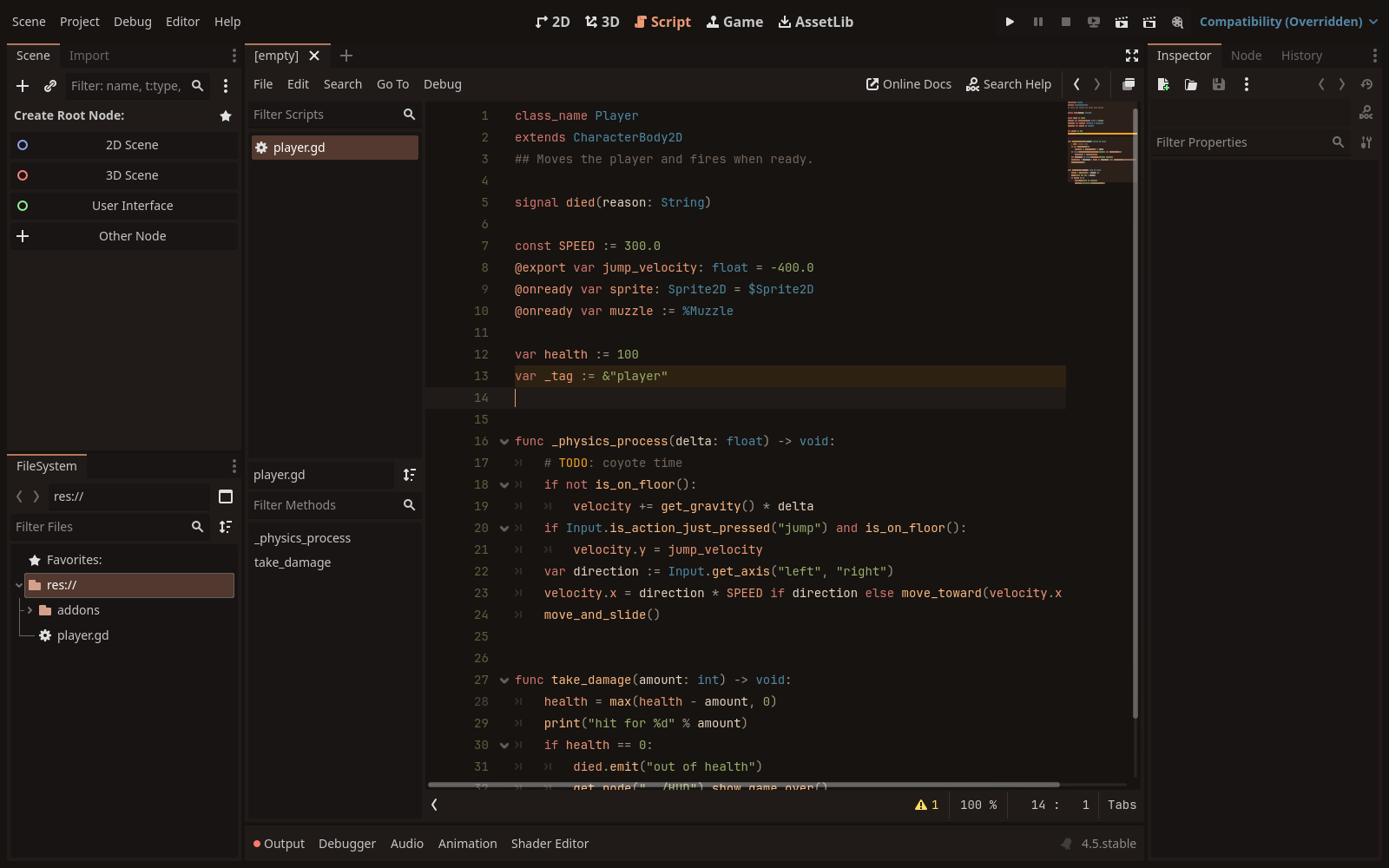
Neovim uses the script editor’s colors: the plugin builds a godot
colorscheme from Editor Settings → text_editor/theme/highlighting (syntax,
treesitter and LSP groups, plus the cursor line, selection, line numbers,
popup menu and status line). It replaces the colorscheme from your config, and
follows the editor when you change its colors or pick another text editor
theme. Translucent Godot colors are blended over the background, since Neovim
colors can’t be translucent.
To keep your own colorscheme, clear Editor Settings →
godot_nvim/use_editor_colors (it takes effect when Neovim restarts, for
example after restarting the editor). :colorscheme godot switches back to the
editor’s colors at any time.
To go the other way and give Godot the colors of a Vim colorscheme, use
colorscheme/: a Go tool that converts any scheme
from vimcolorschemes.com into a Godot editor
theme (script-editor colors and interface colors). Neovim then follows that
theme through the godot colorscheme. Each release has prebuilt binaries of
it for Linux, macOS and Windows.
Color picker #
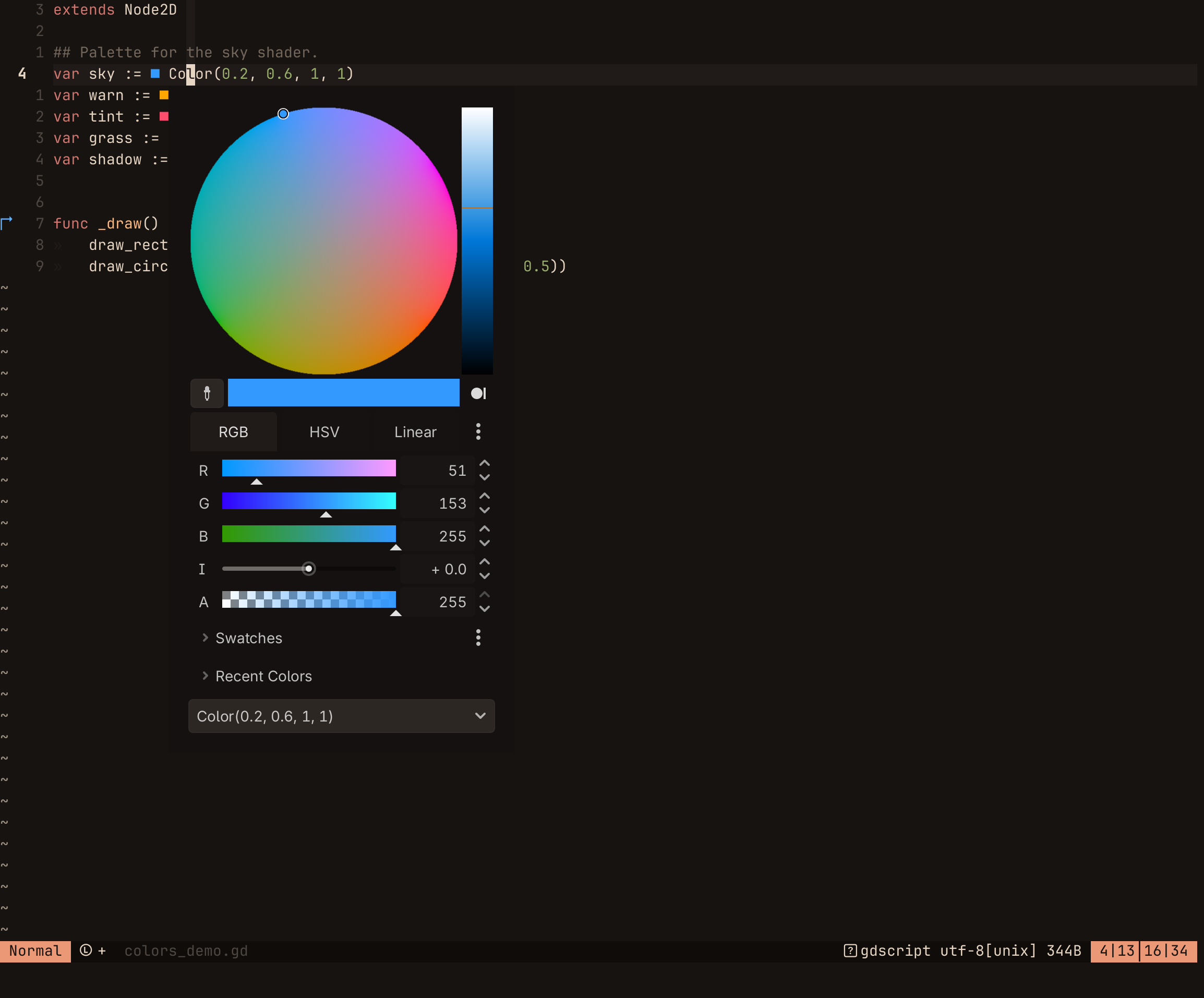
Like Godot’s script editor, a swatch (■) in the color sits before each
Color literal in a .gd buffer. Clicking the swatch, :GodotColor, or
gC in normal mode with the cursor on the literal opens Godot’s color
picker below it. Each pick rewrites the literal, and one u undoes all the
picks you made while the picker was open. The list under the picker chooses
how the color is written: Color(r, g, b, a), Color("rrggbbaa"),
Color.from_hsv(...), Color.from_ok_hsl(...), Color.from_rgba8(...) or
Color(0xrrggbbaa). The picker starts in the mode and shape you last used
in the editor’s color pickers.
The picker works on the literals Godot’s picker does: Color(r, g, b[, a]),
Color("#hex") or Color("name"), Color(0xRRGGBBAA), Color(),
Color.from_hsv, Color.from_ok_hsl, Color.from_rgba8 with number
arguments, and constants such as Color.RED. To pick a color for a Color
variable with no value yet, type Color() and open the picker on it. A
color built from variables or expressions, such as Color(r, g, 0), has no
swatch and no picker, since a pick would overwrite the expression.
Set vim.g.godot_nvim_color_key to another key, or to false for none, and
vim.g.godot_nvim_color_swatch to another glyph. vim.g.godot_nvim_color_swatches = false turns the swatches off.
Resource paths #
An icon sits before each preload, load or ResourceLoader.load of a
file in a .gd buffer, whether the path is res://, uid:// or relative
to the script. It is the icon the FileSystem dock shows for the file: the
image itself for textures, the scene icon for scenes, the script icon for
scripts, and a broken-file icon when the file is missing.
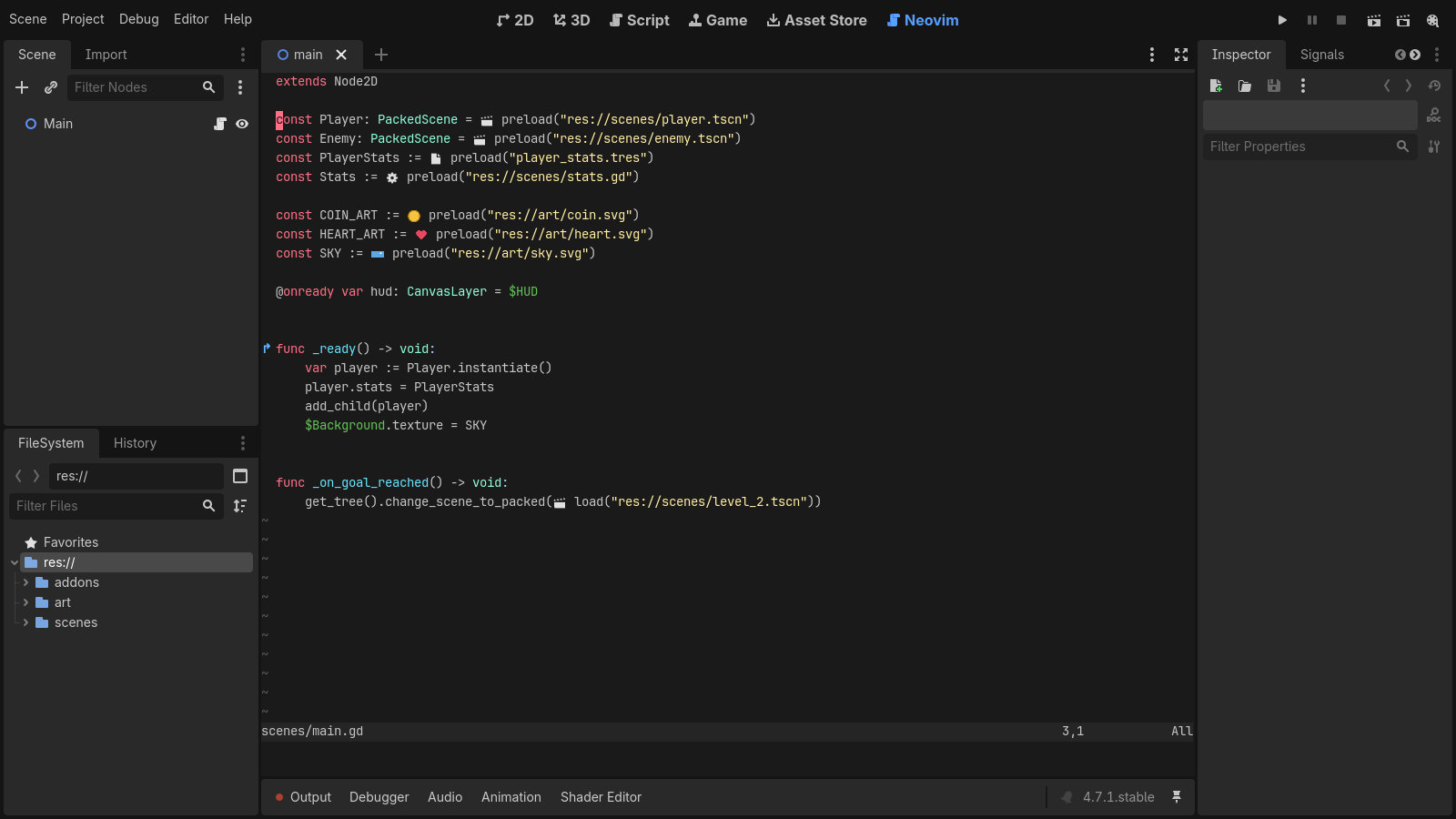
Double-clicking the icon, or :GodotOpenResource with the cursor on the
line, opens the file as a double-click in the FileSystem dock would:
- a scene opens in Godot, which switches to the 2D or 3D editor;
- a script, shader or other text file opens in Neovim;
- anything else (a
.tres, a texture, a sound, a font) opens in the Inspector, with its preview or player, and is selected in the FileSystem dock.
:GodotPickResource opens Godot’s Quick Open dialog on files of the same
kind (any texture for a texture, any scene for a scene, any sound for a
sound), and the file you pick replaces the path. A uid:// path stays a
uid:// path; any other path is written as res://. One u undoes it.
Right-clicking a line with a path also offers Open Resource and
Change Resource… in Neovim’s popup menu (with mouse on and the
default mousemodel).
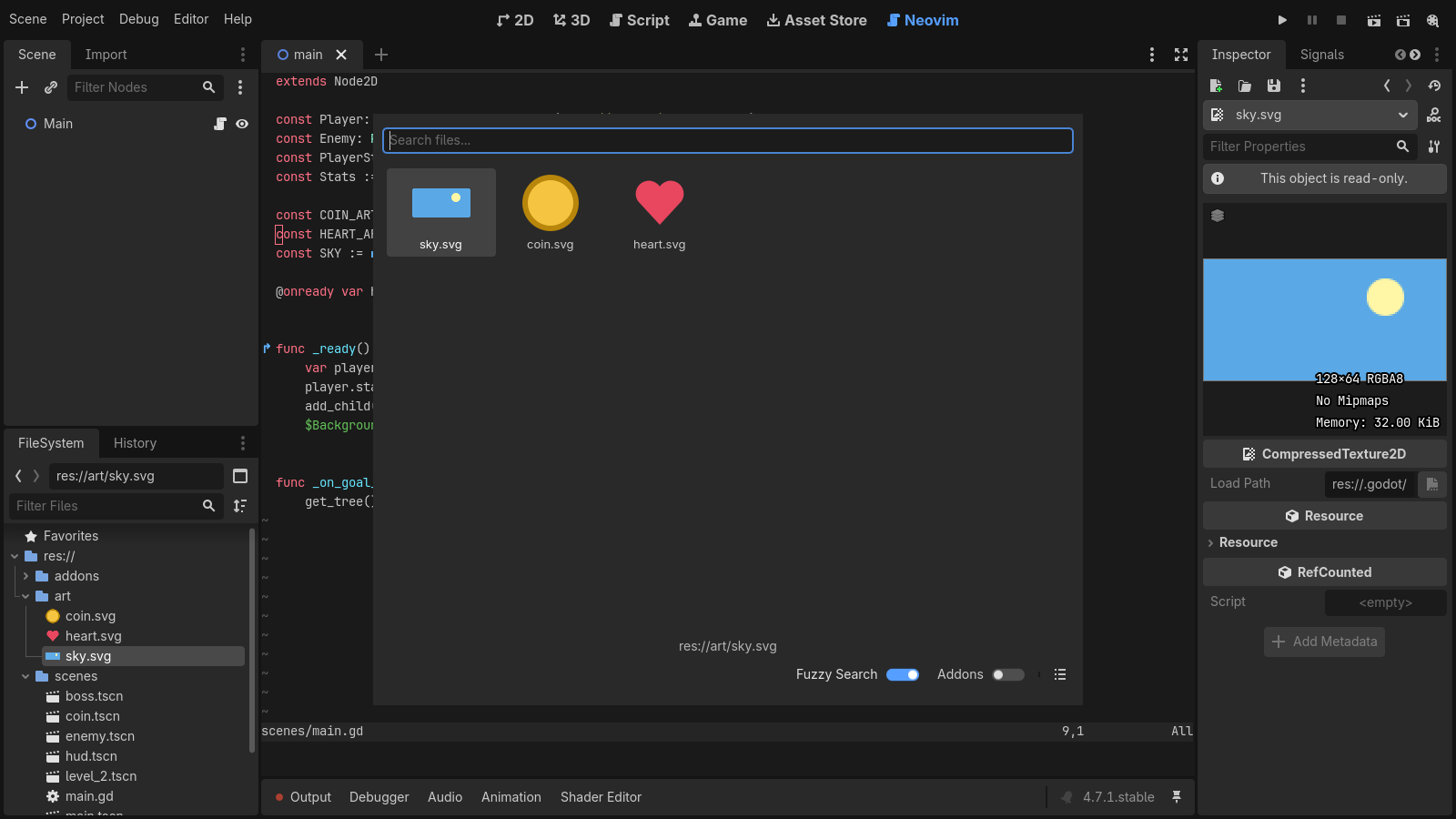
vim.g.godot_nvim_resource_icons = false turns the icons off, and
vim.g.godot_nvim_resource_icon shows that glyph instead of the icons.
Quick Open lists only files with a UID, which Godot gives every file it
imports or saves.
Language server #
The plugin connects .gd buffers to the GDScript language server that the
Godot editor runs (host and port come from Editor Settings →
network/language_server/remote_host / remote_port, default
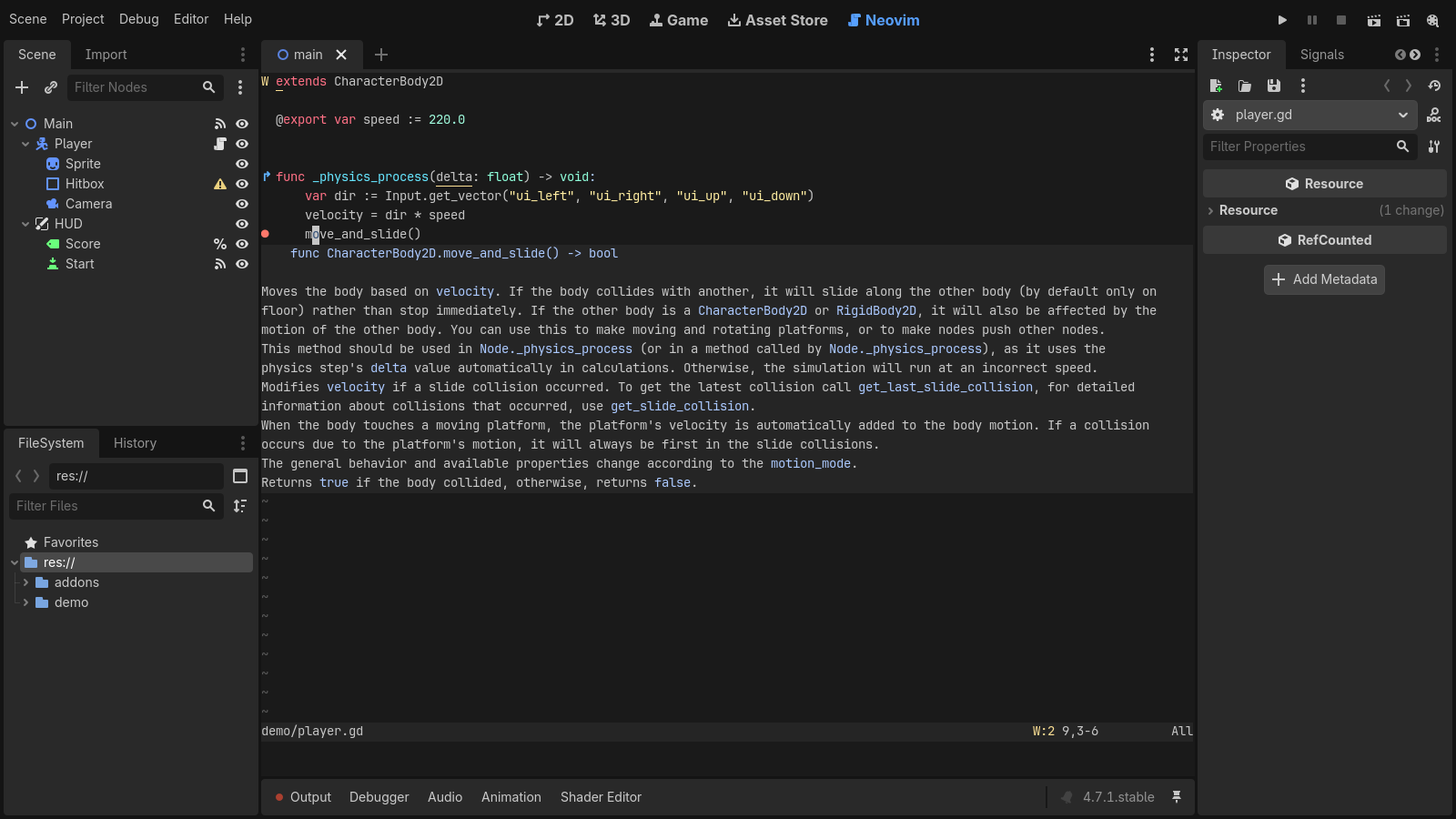
127.0.0.1:6005). This gives hover docs (including the engine class
reference), go-to-definition, references, rename and completion.
Godot starts its language server only once the editor has finished loading, which is usually after Neovim has opened your files, so the plugin waits for the server to take connections before it attaches. If it still isn’t answering after two minutes, you get one warning.
If your own config already sets up a gdscript client (vim.lsp.enable("gdscript")
or nvim-lspconfig), the plugin leaves it alone and uses yours. To turn the
plugin’s client off entirely, clear Editor Settings → godot_nvim/connect_lsp.
On Neovim 0.11+ the default LSP mappings cover most of it: K for hover,
Ctrl-] for definition, grr for references, grn for rename, gra for
code actions, and Ctrl-x Ctrl-o for completion. For completion as you type
and a gd mapping, add something like this to your config:
vim.api.nvim_create_autocmd("LspAttach", {
  callback = function(ev)
    local client = vim.lsp.get_client_by_id(ev.data.client_id)
    if client and client.name == "gdscript" then
      vim.lsp.completion.enable(true, client.id, ev.buf, { autotrigger = true })
      vim.keymap.set("n", "gd", vim.lsp.buf.definition, { buffer = ev.buf })
    end
  end,
})
Godot’s language server can’t search symbols across the project
(workspace/symbol), so the plugin adds :GodotFunc <name>. It opens the
function with that name in any .gd file under the project, with name
completion on Tab. When several functions share the name, or none matches
exactly but some contain it, they go to the quickfix list instead.
Errors across the project #
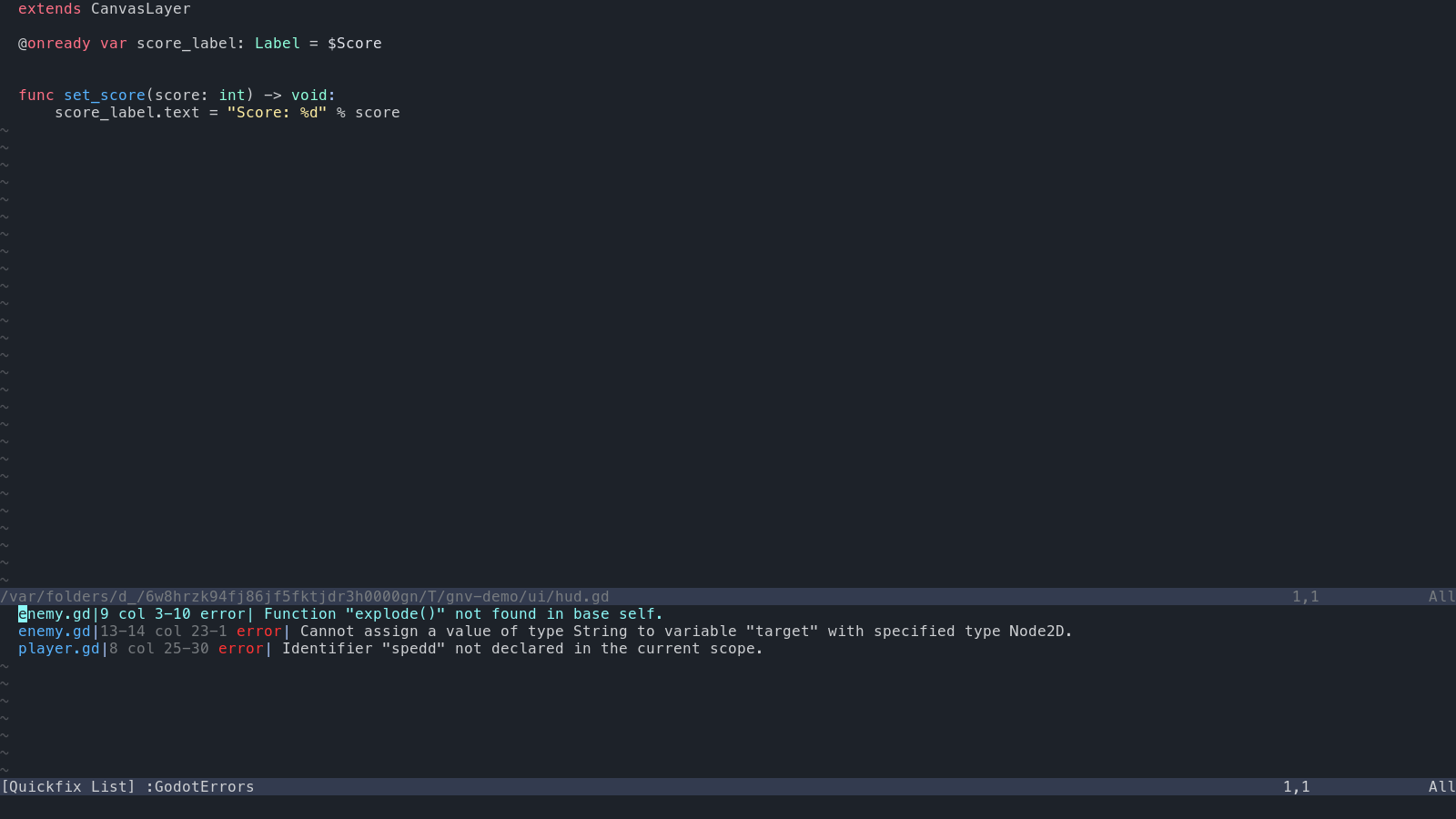
Godot’s language server only reports errors for files you have open, so
:GodotErrors checks every .gd file in the project with it. If there are
errors, they go to the quickfix list and it opens; if there are none, it says
so and closes a list it opened before. :GodotErrors! lists warnings too.
Files you have open in Neovim are checked as they are in the buffer, unsaved
edits included; the rest are read from disk. It needs the language server, so
Godot’s editor has to be running with godot_nvim/connect_lsp on (or your own
gdscript client).
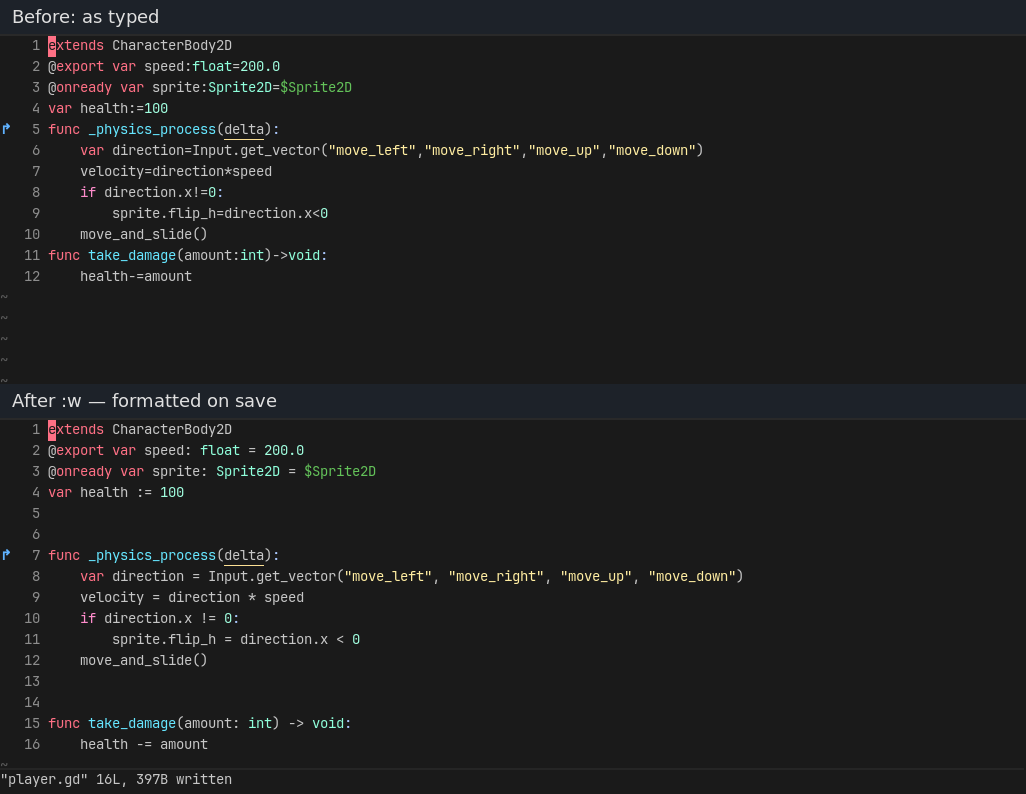
Formatting #
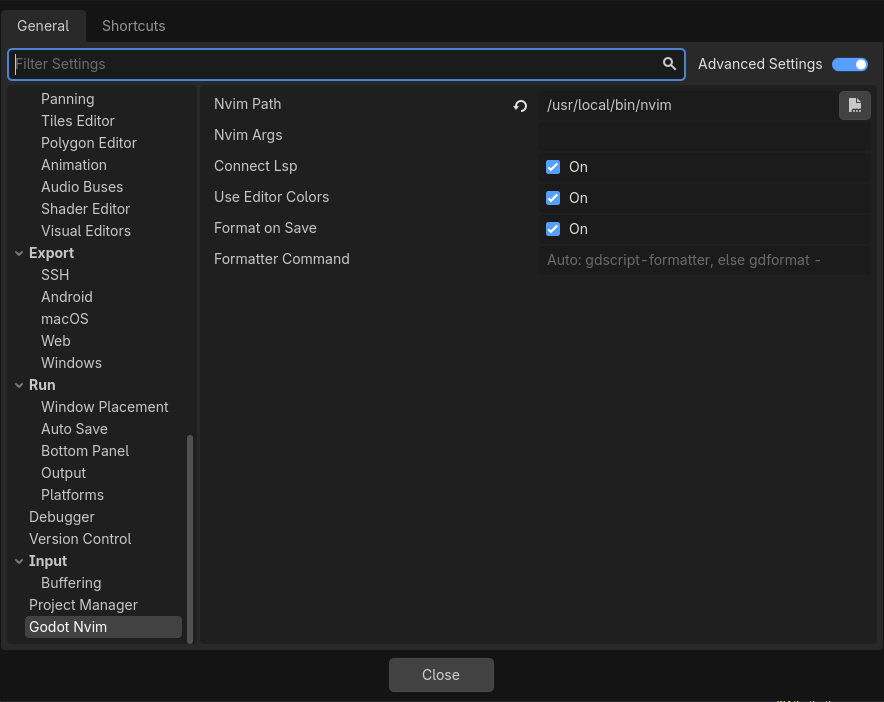
GDScript files are formatted when you save them (:w, or when Godot saves
Neovim’s buffers). Godot has no GDScript formatter of its own, so install one:
- GDQuest’s GDScript Formatter
(
gdscript-formatter), a single binary. If you use its Godot add-on, the copy the add-on installed is picked up, along with its indent settings. - gdtoolkit’s
gdformat:pip install "gdtoolkit==4.*".
The plugin looks for gdscript-formatter first, then gdformat, in your
PATH, /opt/homebrew/bin, /usr/local/bin, ~/.local/bin and
~/.cargo/bin. With neither installed, files save as they are. To use
another command, set Editor Settings → godot_nvim/formatter_command; it
must read the code on stdin and print the formatted code, like
gdformat -. Both tools read .editorconfig / gdformatrc from the
project folder.
Turn formatting on save off with Editor Settings →
godot_nvim/format_on_save (Advanced Settings must be on to see it).
:GodotFormat formats the current buffer either way. To skip one buffer, set
vim.b.godot_nvim_format = false in it.
Only the lines the formatter changed are replaced, so breakpoints, marks and
the cursor stay put, and one u undoes your last change together with the
formatting. If the formatter fails (for example on a syntax error) the file
saves unformatted and a warning shows in Neovim.
Settings #
Editor Settings → godot_nvim/:
| Setting | Default | What it does |
|---|---|---|
nvim_path | found automatically | The nvim binary |
nvim_args | empty | Extra arguments for Neovim, such as -u NONE |
connect_lsp | on | Attach Godot’s GDScript language server to .gd buffers |
use_editor_colors | on | Use the godot colorscheme built from the script editor’s colors |
format_on_save | on | Format .gd files when saving, if a formatter is installed |
formatter_command | empty: gdscript-formatter, else gdformat - | The formatter command; reads stdin, prints the result |
restore_session | on | Save the open files, cursors, splits and tabs on close and restore them on open |
start_clean | off | Start Neovim with --clean, without your config and plugins |
link_scene_tabs | on | Give each open scene its own Neovim tab page, and switch them together |
Neovim commands: :GodotRun, :GodotRunCurrent, :GodotRunScene,
:GodotRunFile, :GodotPause, :GodotStop, :GodotToggleBreakpoint, :GodotConnections,
:GodotFunc, :GodotErrors, :GodotFormat, :GodotColor, :GodotOpenResource,
:GodotPickResource, and :colorscheme godot.
Known gaps #
- Godot’s breakpoint API lives in its own script editor, so the plugin keeps scripts with breakpoints open there in the background.
- Godot’s own editors still load the file in the background: plain text files get a tab in the script editor, and shaders may open the shader editor panel. The engine does this before any plugin sees the file. Edit in Neovim only, or the copies can drift apart.
- Some features go through Godot’s editor internals because no plugin API exists yet. docs/godot-api-wishlist.md lists each one and the Godot API that would replace it.
- Only one grid (no
ext_multigrid). The popup menu, cmdline and messages are drawn by Neovim inside the grid.
Layout #
| File | What it does |
|---|---|
msgpack.gd | MessagePack encoder and streaming decoder |
nvim_rpc.gd | Starts nvim --embed through OS.execute_with_pipe, msgpack-RPC requests and notifications |
nvim_grid.gd | ext_linegrid screen state (cells, highlights, cursor, mode) |
nvim_view.gd | Control that draws the grid and sends keyboard, mouse and drops to Neovim |
nvim_keys.gd | Turns Godot key events into Neovim key notation |
drop_text.gd | Builds the text for dropped nodes, files and Inspector properties |
color_literal.gd | Finds Color literals in GDScript and writes picked colors the ways Godot’s picker does |
color_popup.gd | The :GodotColor color picker popup |
resource_literal.gd | Finds resource paths in preload/load calls in GDScript |
godot_nvim.lua | Neovim side: save and buffer notifications, :q handling, sessions, drop insertion, breakpoint, signal and override signs, color swatches, resource icons, LSP setup, run commands |
theme_colors.gd | Reads the script editor’s colors for Neovim’s godot colorscheme |
nvim/colors/godot.lua | The godot colorscheme (needs the colors from the editor) |
debugger_bridge.gd | EditorDebuggerPlugin: forwards the debugger’s go-to-line and breakpoint events |
editor_profiles.gd | Makes the -neovim editor feature profiles |
export_excluder.gd | EditorExportPlugin: keeps the addon out of exported games |
plugin.gd | EditorPlugin: the main-screen tab, opening files, editor settings, breakpoint/connection/override/color sync, run actions |
Tests #
NVIM=/path/to/nvim godot --headless --path . -s tests/run_tests.gd
Add --editor to also test running an EditorScript, which only the editor
can do. The first run in a fresh checkout needs godot --headless --path . --editor --quit
first, so Godot registers the addon’s class_names.
Website #
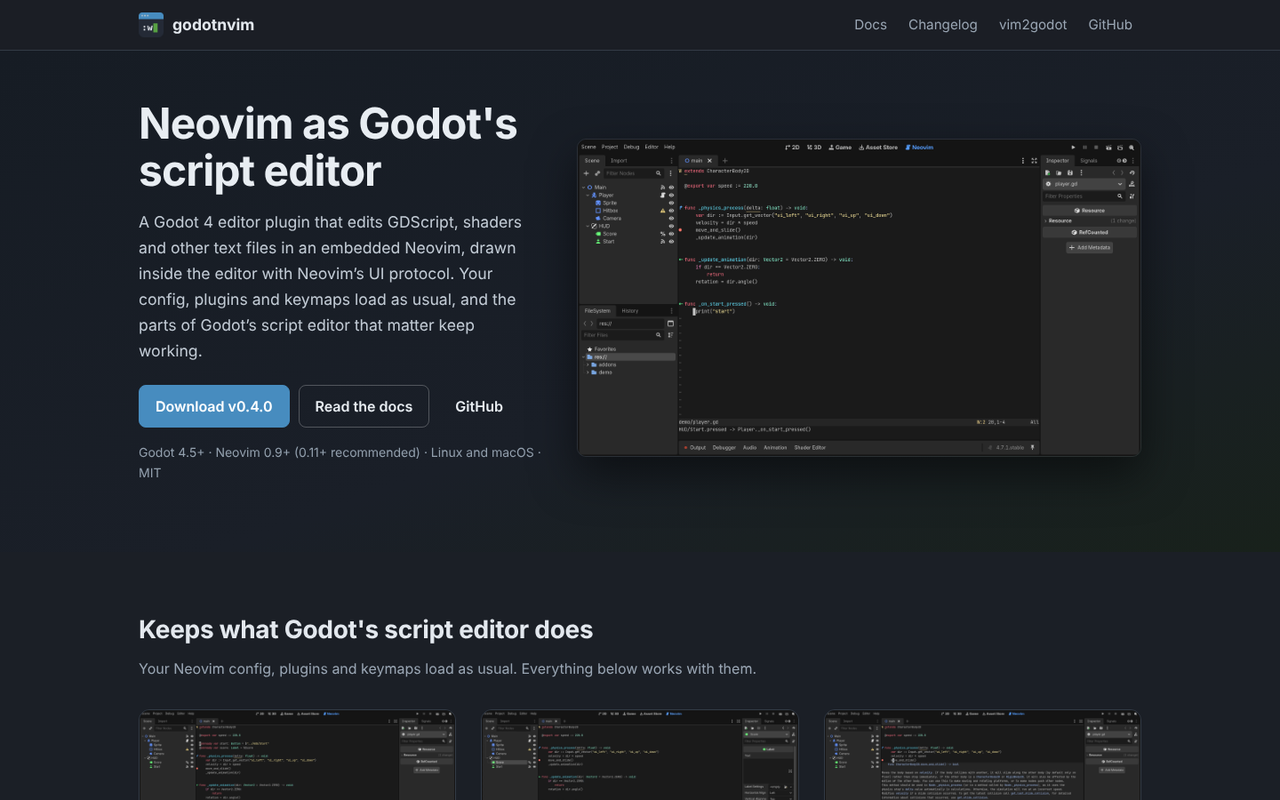
gdey.github.io/godotnvim is a
Hugo site in site/. Its Docs, Changelog, vim2godot
and API wishlist pages are this README, CHANGELOG.md,
colorscheme/README.md and docs/godot-api-wishlist.md, mounted as they
are, so edit those files rather than copies. Only the home page lives in
site/: its text in site/content/_index.md and its feature cards, which
use the Asset Store screenshots in docs/store/, in
site/data/features.yaml. Relative links and images in the Markdown are
rewritten to the matching page or screenshot, or to the file on GitHub.
To preview it, install Hugo 0.168 or newer and run, from the repository root:
hugo server --source site
The Pages workflow builds and publishes it on every push to main that
touches the site or the files it shows.
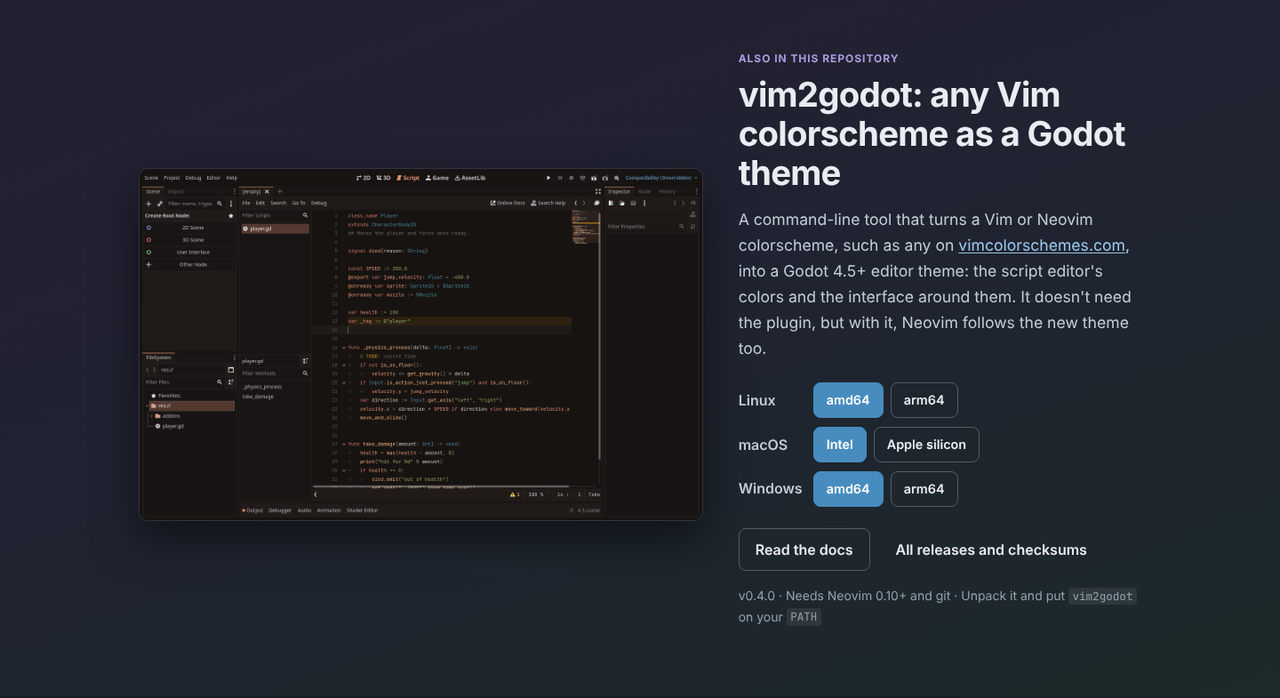
Further down, the home page has the same treatment for vim2godot, with a
download button for each platform, built from the version in plugin.cfg:
Releasing #
Bump version in addons/godot_nvim/plugin.cfg and add a section for it to
CHANGELOG.md: a summary of at most three sentences, then Added, Removed and
Fixed sections, with a screenshot for each major feature. Commit, then push a
matching tag:
git tag v0.5.0 && git push origin v0.5.0
The Release workflow checks the tag against plugin.cfg, runs the addon’s and
the colorscheme tool’s tests, and publishes one GitHub release. Its notes,
built by .github/release-notes.sh, are the version’s summary, an About
section from docs/release/about.md, and the version’s Added, Removed and
Fixed sections, with screenshots pinned to the tag. To rewrite an existing
release’s notes after editing them, run the Release notes workflow from the
Actions tab with the tag. Its assets, all with the
same version:
godot_nvim-<version>.zip: theaddons/godot_nvimfoldercolorscheme-<version>-<os>-<arch>.tar.gz(.zipfor Windows): thevim2godotcolorscheme tool, for Linux, macOS and Windows on amd64 and arm64SHA256SUMS.txt: checksums of the files above